
Your websites are the stars of the show, and Enhance makes managing them easier than ever. Whether you're hosting a simple blog or a complex e-commerce empire, this guide has you covered.
From the dashboard, click Websites in the sidebar to see all your hosted domains.
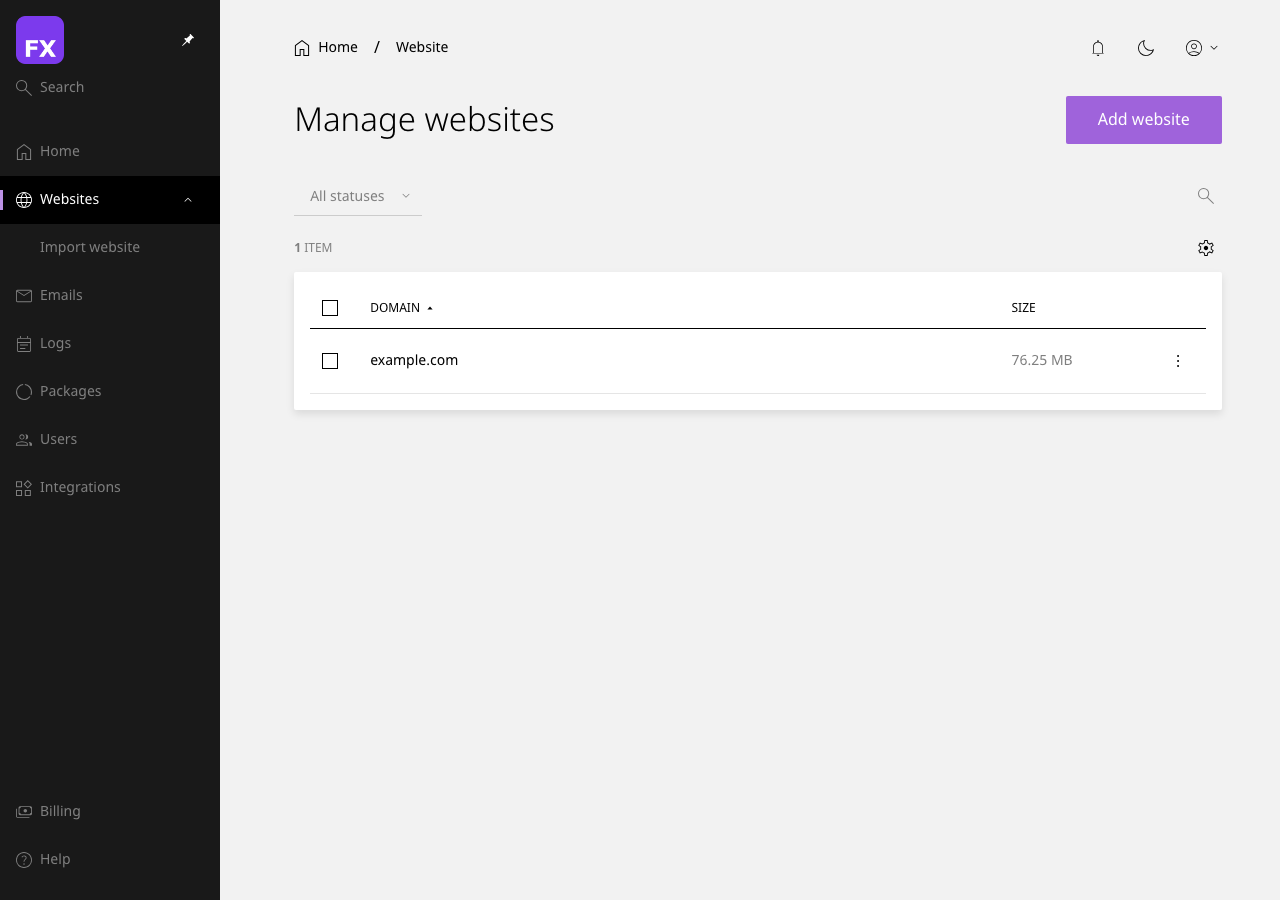
Each website shows:
Ready to add a new website to your hosting? Here's how:
myawesomewebsite.com)[SCREENSHOT: The Add Website form with domain, PHP version, and web server options]
Pro Tip: If your domain isn't registered with us, you'll need to update your nameservers or create an A record pointing to your server's IP address. We'll display this information after creating the website.
Click on any website to access its settings. Here's what you can configure:
[SCREENSHOT: Website general settings panel]
/public_html)One of Enhance's superpowers is the ability to switch web servers without any downtime:
That's it! Your website will seamlessly switch to the new web server.
[SCREENSHOT: The web server dropdown showing all available options]
Need a subdomain like blog.yourdomain.com? Easy peasy:
blog)[SCREENSHOT: The subdomain creation form]
Want www.yourdomain.com and yourdomain.com to both work? Set up an alias:
Need to redirect visitors from one URL to another?
[SCREENSHOT: The URL redirects configuration panel]
Enhance lets you set hard limits on resources to keep websites running smoothly:
[SCREENSHOT: Resource limits configuration showing CPU, memory, and I/O settings]
Want to know how your website is performing? Check the Statistics section for:
[SCREENSHOT: Website statistics showing graphs for bandwidth and requests]
Need to temporarily take a website offline?
The website will display a suspension notice to visitors. You can unsuspend at any time.
Warning: This is permanent and will delete all files, databases, and email accounts associated with the website.
[SCREENSHOT: The delete confirmation dialog with the domain name input field]
Next Steps: Now that your website is set up, learn how to manage your files with our File Manager Guide.