FTP and SFTP Access in Enhance
While the built-in File Manager is fantastic for quick edits, sometimes you need the power of a dedicated FTP client - especially for large file transfers or working offline.
FTP vs SFTP: What's the Difference?
| Feature |
FTP |
SFTP |
| Encryption |
None (plain text) |
Fully encrypted |
| Port |
21 |
22 |
| Security |
Low |
High |
| Our Recommendation |
Avoid if possible |
Use this one! |
Security Note: We strongly recommend using SFTP whenever possible. FTP transmits your password in plain text, which is about as secure as writing it on a postcard.
Finding Your Connection Details
- Go to Websites and select your domain
- Click FTP Accounts in the website menu
- Your connection details will be displayed
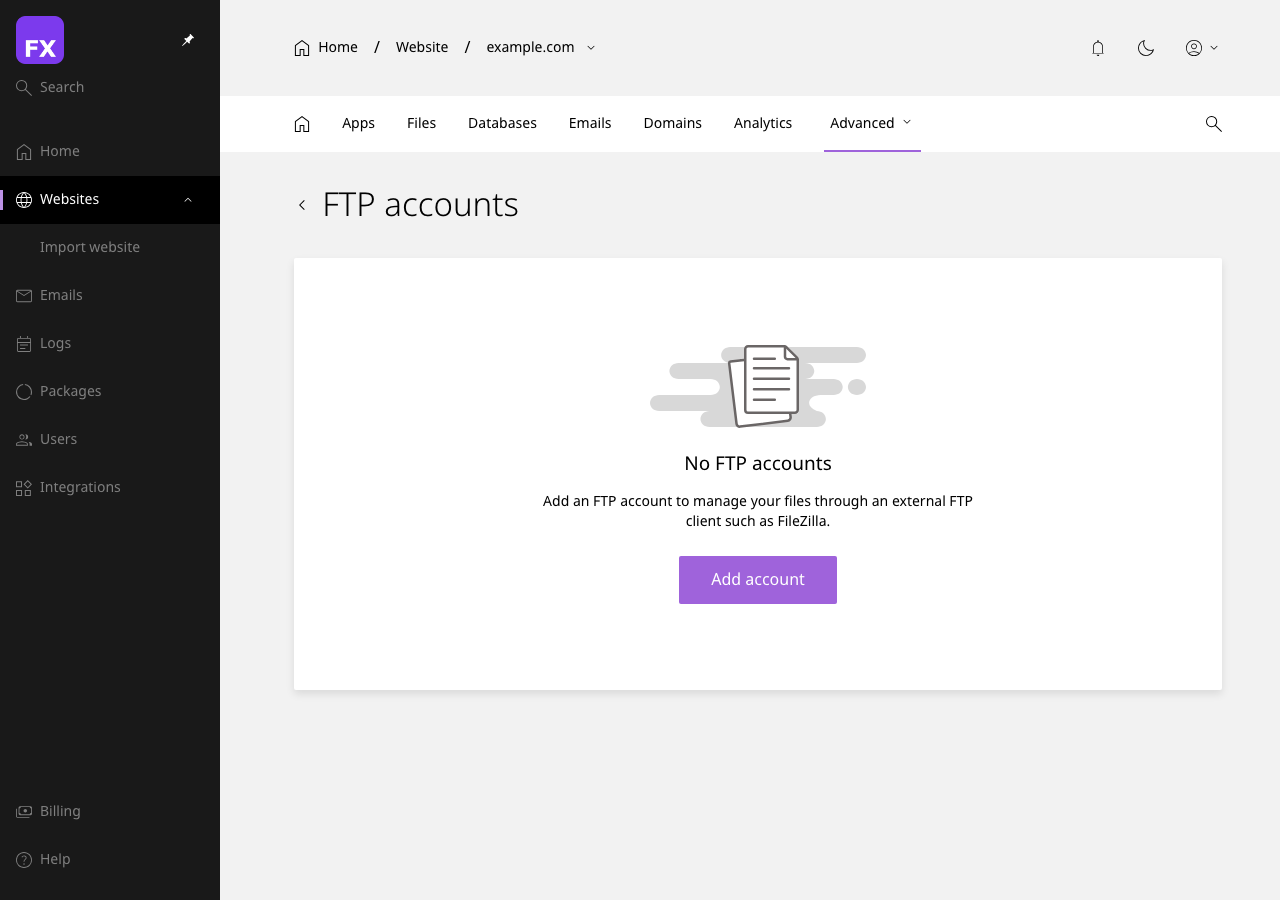
Connection Information
- Host: Usually
ftp.yourdomain.com or your server's IP address
- Port: 22 for SFTP, 21 for FTP
- Username: Your FTP username (often your email or a custom username)
- Password: Your FTP password
- Directory: Usually
/public_html for website files
Creating FTP Accounts
Need additional FTP accounts for developers or different access levels?
- Navigate to Websites > Your Domain > FTP Accounts
- Click + Create FTP Account
- Enter a username
- Set a strong password
- Choose the home directory (which folder they can access)
- Click Create
Top Tip: Create separate FTP accounts for different developers or purposes. This way, you can revoke access without changing your main password.
Connecting with FileZilla (Recommended)
FileZilla is a free, open-source FTP client that works brilliantly with Enhance.
Step-by-Step Setup
- Download FileZilla from filezilla-project.org
- Open FileZilla
- Go to File > Site Manager
- Click New Site and name it (e.g., "My Awesome Website")
- Enter your details:
- Protocol: SFTP - SSH File Transfer Protocol
- Host: Your server address
- Port: 22
- Logon Type: Normal
- User: Your FTP username
- Password: Your FTP password
- Click Connect
[SCREENSHOT: FileZilla Site Manager with SFTP settings filled in]
First-Time Connection
When connecting for the first time, you'll see a security warning about the server's host key. This is normal:
- Check the box "Always trust this host"
- Click OK
[SCREENSHOT: FileZilla host key verification dialog]
Connecting with Cyberduck (Mac)
Cyberduck is a popular choice for Mac users:
- Download Cyberduck from cyberduck.io
- Click Open Connection
- Select SFTP (SSH File Transfer Protocol) from the dropdown
- Enter your server, username, and password
- Click Connect
[SCREENSHOT: Cyberduck connection dialog with SFTP selected]
Connecting with WinSCP (Windows)
WinSCP is another excellent free option for Windows:
- Download WinSCP from winscp.net
- Create a new site with:
- File Protocol: SFTP
- Host name: Your server address
- Port: 22
- User name: Your FTP username
- Password: Your FTP password
- Click Login
[SCREENSHOT: WinSCP Login dialog with SFTP settings]
Troubleshooting Connection Issues
"Connection Refused"
- Check the port: Make sure you're using port 22 for SFTP
- Check the hostname: Verify you have the correct server address
- Firewall: Your local firewall might be blocking the connection
"Authentication Failed"
- Password: Double-check your password (case-sensitive!)
- Username: Make sure you're using the full FTP username
- Account status: Check if your FTP account is active in Enhance
"Timeout" Errors
- Try passive mode: In FileZilla, go to Edit > Settings > FTP and select "Passive"
- Check your internet: Make sure you have a stable connection
- Server status: Our server might be experiencing issues - check our status page
"Permission Denied"
- Directory access: Your FTP account might be restricted to certain folders
- File permissions: Some files may have restrictive permissions
Managing FTP Accounts
Changing Passwords
- Go to FTP Accounts in Enhance
- Find the account you want to modify
- Click Change Password
- Enter a new strong password
- Save changes
Deleting FTP Accounts
- Go to FTP Accounts
- Find the account to delete
- Click the Delete button
- Confirm the deletion
Security Best Practices
- Use SFTP, not FTP - Always choose encrypted connections
- Strong passwords - Use a password manager to generate unique passwords
- Limit access - Create separate accounts with restricted directories
- Review regularly - Delete FTP accounts that are no longer needed
- Don't share credentials - Create individual accounts for each user
Next Steps: Ready to set up your email? Check out our Email Management Guide.
