Using Zimbra Calendar and Contacts
Zimbra isn't just email - it's a complete collaboration platform. Let's explore the calendar and contacts features that'll keep you organised.
Zimbra Calendar
Accessing the Calendar
- Log into Zimbra Webmail
- Click Calendar in the left navigation panel
- Your calendar view will appear
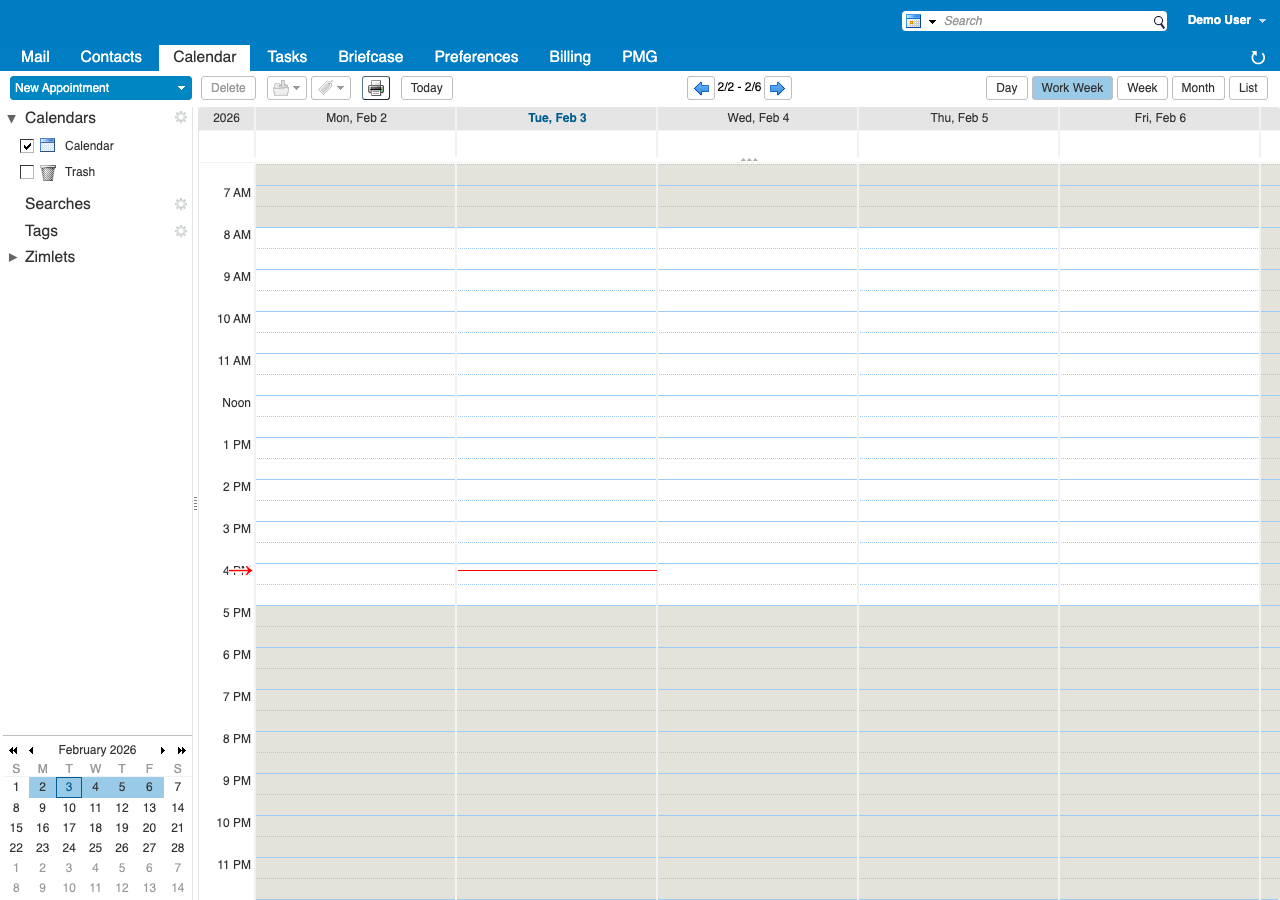
Calendar Views
Switch between views using the buttons at the top:
| View |
Best For |
| Day |
Detailed hourly schedule |
| Work Week |
Monday-Friday overview |
| Week |
Full 7-day view |
| Month |
Big picture planning |
| List |
Upcoming events as a list |
Creating an Event
- Click New in the toolbar, or
- Double-click on a time slot, or
- Click and drag to select a time range
Fill in the event details:
| Field |
Description |
| Subject |
Event name/title |
| Location |
Where it's happening |
| Start/End |
Date and time |
| All day |
Check for day-long events |
| Repeat |
Set recurring patterns |
| Reminder |
Get notified before the event |
| Show as |
Free, Busy, Tentative, Out of Office |
[SCREENSHOT: New event dialog with fields highlighted]
Click Save or Send (if inviting others).
Inviting Attendees
To schedule a meeting with others:
- Create a new event
- Click Attendees or the person icon
- Enter email addresses or search contacts
- Mark attendees as:
- Required - Must attend
- Optional - Nice to have
- Click Send to send invitations
[SCREENSHOT: Attendee selection interface]
Checking Availability
When scheduling with others:
- Click Suggest Time or Find Attendees
- Zimbra shows when all attendees are free
- Select a time slot that works for everyone
- The event time updates automatically
Recurring Events
For events that repeat:
- Create or edit an event
- Click Repeat
- Choose a pattern:
- Daily
- Weekly (select days)
- Monthly (by date or day)
- Yearly
- Set an end date or number of occurrences
Responding to Invitations
When you receive a meeting invitation:
- Open the email
- Click Accept, Tentative, or Decline
- Optionally add a response message
- The event is added to your calendar (if accepted)
You can also respond from the calendar by right-clicking the event.
Managing Multiple Calendars
Creating a New Calendar
- Right-click on Calendars in the left panel
- Select New Calendar
- Enter a name (e.g., "Personal", "Projects")
- Choose a colour
- Click OK
[SCREENSHOT: New calendar dialog]
Calendar Colours
Assign different colours to calendars for easy identification:
- Right-click a calendar
- Select Edit Properties
- Choose a colour
- Click OK
Sharing Calendars
Share your calendar with colleagues:
- Right-click the calendar
- Select Share Calendar
- Enter the person's email address
- Set permissions:
- View - See events
- View (free/busy only) - See availability, not details
- Manager - Add/edit events
- Send the share invitation
[SCREENSHOT: Calendar sharing dialog]
Subscribing to Shared Calendars
When someone shares a calendar with you:
- You'll receive a share notification email
- Click Accept to add the calendar
- It appears under Calendars in your list
Zimbra Contacts
Accessing Contacts
- Click Contacts in the left navigation
- Your address book appears
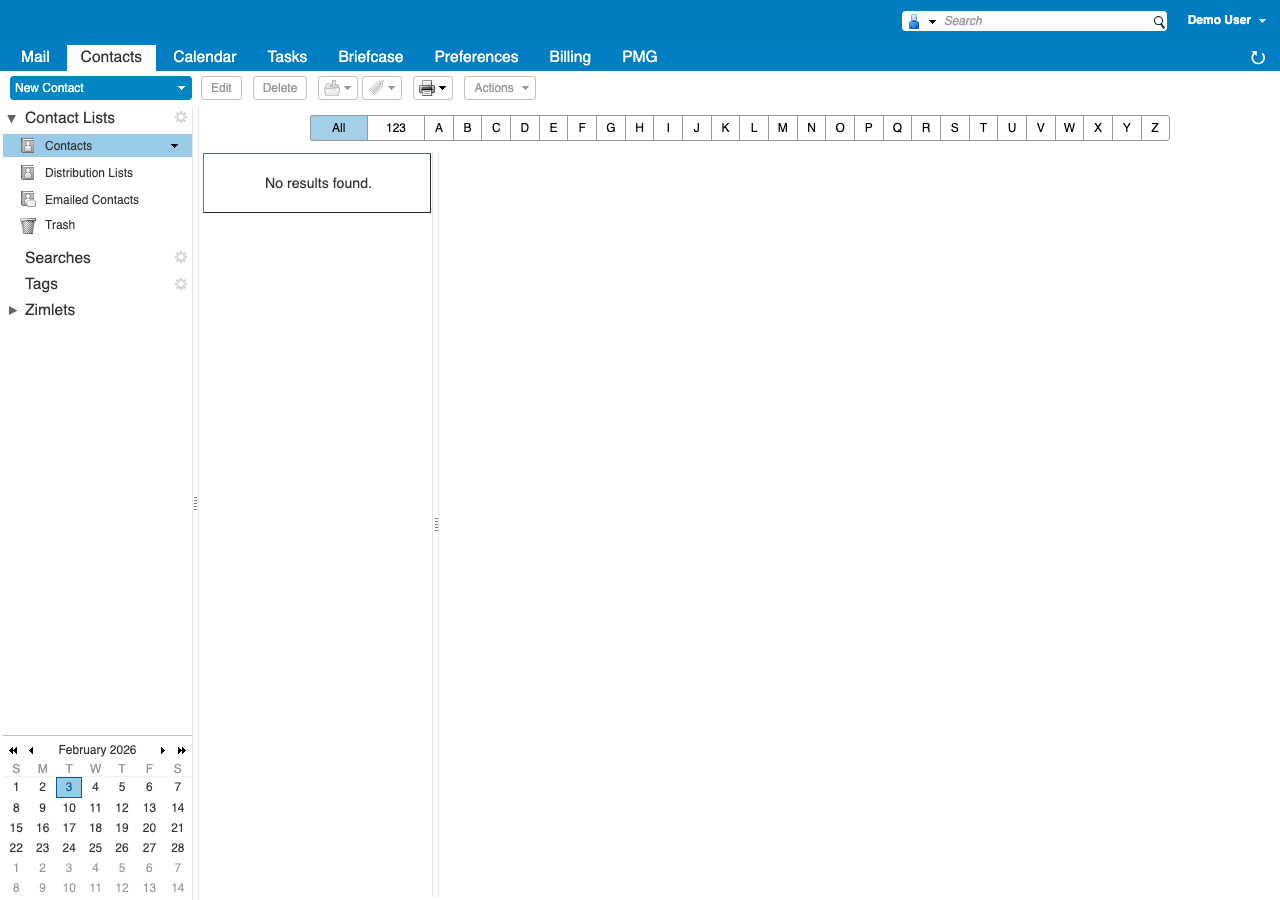
Creating a Contact
- Click New Contact
- Enter details:
- Name - First, middle, last
- Job Title - Their role
- Company - Organisation
- Email - Add multiple addresses
- Phone - Work, mobile, home
- Address - Physical location
- Click Save
[SCREENSHOT: New contact form]
Importing Contacts
To import contacts from another system:
- Click Import in the Contacts toolbar
- Choose your file format:
- CSV - Comma-separated values (Excel compatible)
- VCF/vCard - Standard contact format
- Select your file
- Map fields if prompted
- Click Import
Exporting Contacts
To backup or move your contacts:
- Right-click your address book
- Select Export
- Choose format (CSV or VCF)
- Download the file
Contact Groups (Distribution Lists)
Create a group to email multiple people at once:
- Click New Contact Group (or right-click > New Group)
- Enter a group name
- Add members:
- Type email addresses
- Search existing contacts
- Click Add
- Click Save
To use: Type the group name in the To field when composing.
[SCREENSHOT: Contact group creation]
Address Books
Organise contacts into separate address books:
- Right-click Contacts
- Select New Address Book
- Name it (e.g., "Clients", "Personal")
- Drag contacts to organise
Global Address List (GAL)
Your company's shared directory:
- When composing an email, type a name
- Zimbra searches the GAL automatically
- Select the person from the dropdown
Or browse manually:
- Go to Contacts
- Click Global Address List in the left panel
- Search or browse the directory
Syncing Across Devices
Desktop Email Clients
Sync calendar and contacts using:
| Protocol |
For |
| CalDAV |
Calendar sync |
| CardDAV |
Contacts sync |
| ActiveSync |
Both |
See our email client guides for setup instructions.
Mobile Devices
Most mobile devices sync via ActiveSync:
- Calendar events appear in your phone's calendar app
- Contacts sync to your phone's address book
- Changes sync in both directions
Calendar Tips and Tricks
Quick Event Creation
Type in natural language:
Meeting with John tomorrow at 2pm
Zimbra interprets and creates the event.
Keyboard Shortcuts
| Shortcut |
Action |
C |
Create new event |
D |
Day view |
W |
Week view |
M |
Month view |
T |
Go to today |
→ / ← |
Next/previous period |
Print Your Calendar
- Select the date range to print
- Click Print in the toolbar
- Choose layout options
- Print to paper or PDF
Free/Busy Information
Control what others see when checking your availability:
- Go to Preferences > Calendar
- Find Free/Busy settings
- Choose what to share:
- Include private events in free/busy
- Exclude certain calendars
Contacts Tips and Tricks
Quick Add from Email
When viewing an email:
- Hover over a sender's name
- Click Add to Contacts (or the + icon)
- Edit details if needed
- Save
Duplicate Detection
Zimbra can help find duplicates:
- Go to Contacts
- Look for the Find Duplicates option
- Review and merge duplicate entries
Contact Photos
Add photos to contacts:
- Open a contact for editing
- Click the photo placeholder
- Upload an image
- Save
Need to sync with your devices? See our guides for iPhone/iPad, Android, or desktop email clients.
